Quick answer
Many modern Smart TVs can use compatible IPTV player applications directly, while others work better with external streaming hardware such as Fire TV, Android TV, Apple TV, or dedicated boxes. Whether IPTV works on your Smart TV depends on the television's operating system, model year, regional app availability, and the player application you choose. Samsung, LG, and Android TV each use different operating systems with different app ecosystems.
Key takeaways
- Many modern Smart TVs can run compatible IPTV players directly without extra hardware.
- Samsung, LG, and Android/Google TV use different operating systems and app ecosystems.
- An IPTV player and an IPTV subscription are not the same thing — the player is software, the subscription provides content credentials.
- Streaming reliability depends on the TV, application, network connection, and service infrastructure.
- External devices can sometimes provide a better experience than an older Smart TV platform.
- TV brand alone does not determine compatibility; operating system, model year, and regional app availability all matter.
Many modern Smart TVs can use compatible IPTV player applications directly, while others work better with external streaming hardware such as Fire TV, Android TV, Apple TV, or dedicated boxes. This guide explains how IPTV works on Smart TVs in Canada, how Samsung, LG, and Android TV differ, what features matter, what affects streaming quality, how to troubleshoot common issues, and what to check before purchasing a subscription.
This is the comprehensive educational resource. For the focused step-by-step procedure, see our dedicated Smart TV setup guide.
Can You Use IPTV Directly on a Smart TV?
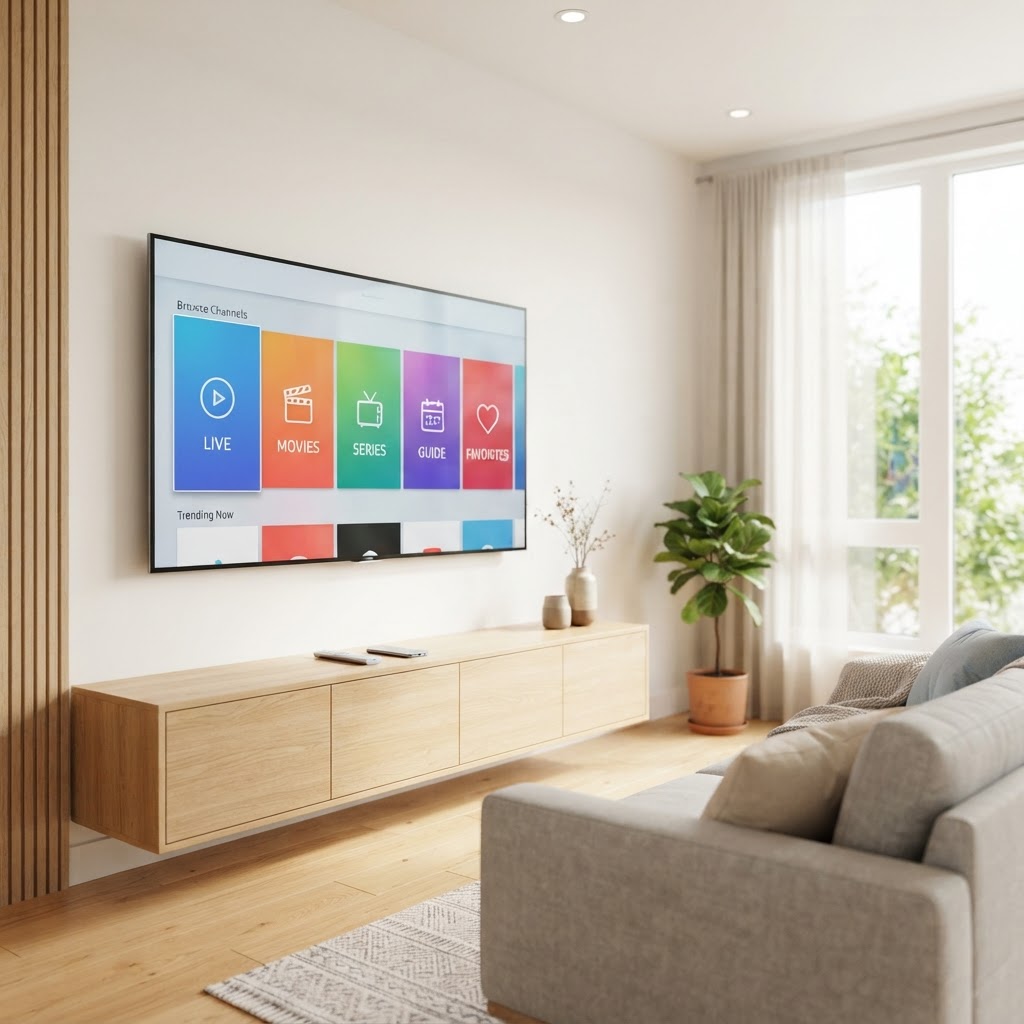
Yes, many Smart TVs can use compatible IPTV player applications directly, although availability and functionality depend on the TV operating system, model, region, and app ecosystem. A Smart TV is a television with built-in internet connectivity and an operating system that can run applications — so if a compatible IPTV player app is available in your TV's app store, you can install it and enter your service credentials without buying additional hardware.
The major Smart TV platforms include:
- •Samsung Smart TV — runs Samsung's Tizen operating system
- •LG Smart TV — runs LG's webOS operating system
- •Android TV — runs Google's Android TV platform (used by Sony, TCL, Hisense, and others)
- •Google TV — Google's newer television interface built on Android TV
- •Other Smart TV operating systems — including Roku TV and proprietary platforms
An important distinction: the TV hardware is the physical television. The TV operating system is the software platform that runs apps. The IPTV player is the application you install to receive and display streams. The IPTV subscription or service is what provides the actual channel list and credentials. These are four separate things, and understanding the difference helps you choose the right setup and troubleshoot problems. For an overview of supported platforms, see our Smart TV compatibility page.
IPTV Player vs IPTV Subscription
An IPTV player is software that receives and displays IPTV streams. An IPTV subscription or service provides the access credentials or playlist data that the player needs to load content. A player does not automatically include television content — installing a player app gives you the interface, not the channels.
The flow is: IPTV service → credentials or playlist information → compatible IPTV player → Smart TV → viewer. The service provides the data, the player displays it, and the Smart TV runs the player. Without valid credentials from a legitimate service, a player app has nothing to stream.
This distinction matters because many users install a player app expecting channels to appear automatically. They do not. You need a separate subscription with a provider that supplies a server URL, username, password, or playlist URL that you enter into the player app.
Samsung Smart TV
Samsung Smart TVs run Samsung's Tizen operating system. Tizen has its own app store, and the availability of IPTV player apps depends on the TV model, year, and region. Newer Samsung models generally have broader app availability than older ones, and some apps available on Android TV or Fire TV may not be available on Tizen.
Key considerations for Samsung Smart TVs include:
- •Tizen-based models use Samsung's app ecosystem, not Google Play
- •App availability varies by TV model year and region
- •EPG support depends on the player app, not the TV itself
- •Remote-based navigation is the primary interface
- •Older Samsung TVs may have slower processors and fewer available apps
If a suitable IPTV player is not available on your Samsung TV's app store, or if your TV is several years old and feels slow, an external streaming device such as a Firestick or Android TV box can provide a better experience. Verify current app availability through Samsung's official app store on your TV. For more, see our Smart TV device page.
LG Smart TV
LG Smart TVs run LG's webOS operating system. Like Tizen, webOS has its own app store, and IPTV player availability depends on the TV model, year, and region. Newer LG models with webOS generally have broader app availability than older models.
Key considerations for LG Smart TVs include:
- •webOS-based models use LG's app ecosystem
- •Older webOS versions may have limited app availability
- •The LG Magic Remote supports point-and-click navigation, which can improve usability
- •Player availability varies by model year and region
- •Performance on older LG TVs may lag with large channel lists or heavy EPGs
When a TV's software is outdated, restricted, or no longer receives app updates, an external device can extend the TV's useful life with a modern app ecosystem. Verify current app availability through LG's Content Store on your TV.
Android TV and Google TV
Android TV and Google TV are Google's television platforms. Unlike Samsung's Tizen or LG's webOS, Android TV is used by multiple television manufacturers — including Sony, TCL, Hisense, Philips, and others — as well as standalone streaming boxes and sticks. Google TV is Google's newer interface built on top of Android TV.
Android TV and Google TV differ from Samsung and LG platforms in a key way: they have access to the Google Play Store, which means a broader range of IPTV player applications is typically available. This makes Android TV-based televisions and external Android TV boxes popular choices for IPTV users who want app flexibility.
Important: Android TV and Android mobile are related but not identical platforms. An app that works on an Android phone may not be available on Android TV, and vice versa. Android TV apps are designed for remote-control navigation on a television, not touch-screen interaction on a phone. For more, see our Android TV device page.
Smart TV vs External IPTV Device
One of the most important decisions is whether to use your Smart TV's built-in apps or add an external streaming device. The table below compares the options.
| Option | Extra Hardware | Setup Ease | App Flexibility | Performance | Upgradeability | Best Suited For |
|---|---|---|---|---|---|---|
| Smart TV app | None | Easy | Limited by TV platform | Varies by TV age | Low — tied to TV | Users with recent TVs and available apps |
| Fire TV Stick | Yes (stick) | Easy | Moderate | Good to strong | High — replaceable | Budget users, older TVs |
| Android TV box | Yes (box) | Easy | High (Google Play) | Strong | High — replaceable | Users wanting app choice |
| Apple TV | Yes (box) | Easy | Moderate (App Store) | Strong | High — replaceable | Apple ecosystem users |
| Formuler / dedicated | Yes (box) | Moderate | Purpose-built | Strong | High — replaceable | Dedicated IPTV users |
No option is universally best. A modern high-performance Smart TV with a suitable player app may not need external hardware. An older Smart TV with a slow processor or limited app store often benefits from an external device. For more options, see our devices page.
Do You Need an IPTV Box?
Not necessarily. Many modern Smart TVs can run compatible IPTV applications without an external box. If your TV has a suitable player app available in its app store and the TV's processor handles playback smoothly, you do not need additional hardware.
An external device may make sense when:
- •Your Smart TV is older and its processor feels slow
- •Your TV's app store has limited or no IPTV player options
- •Your TV no longer receives software updates
- •The player app you prefer is not available on your TV's platform
- •You want a better remote experience than the TV's built-in remote
- •You want more flexibility to switch platforms without replacing the TV
An external streaming device can extend the useful life of an older Smart TV by giving it a modern app ecosystem. For more, see our IPTV box page.
How IPTV Setup Works on a Smart TV
Setup follows the same general flow across Smart TV platforms. Here is the high-level overview:
- 1
Confirm your Smart TV platform compatibility — check which operating system your TV runs and whether a suitable player app is available.
- 2
Connect your TV to a stable internet connection — Wi-Fi or Ethernet.
- 3
Install an appropriate IPTV player application available for your TV's platform.
- 4
Open the player app.
- 5
Enter the service credentials supplied by your IPTV provider — server URL, username, password, or playlist URL.
- 6
Allow the playlist and EPG guide information to load — this may take a few minutes for large playlists.
- 7
Test playback and navigation — open a channel, check for buffering, and verify the EPG displays correctly.
For the full step-by-step procedure, see our dedicated Smart TV setup guide.
What Features Should a Smart TV IPTV Player Have?
Not all IPTV player apps are equal. On a television, usability matters more than on a phone because you navigate with a remote, not a touchscreen. Features that matter on a Smart TV include:
- •EPG (Electronic Program Guide): A visual program guide lets you browse what is playing without channel-surfing. On a TV, a clear EPG is essential for usability.
- •Favorites: The ability to mark and quickly access favorite channels saves time with a remote, where typing and scrolling are slower.
- •Search: A search function helps find specific channels without scrolling through long lists with arrow keys.
- •Categories and groups: Organizing channels into categories (news, sports, movies) makes navigation faster on a TV.
- •Subtitles: If you need subtitles, check whether the player supports them on your TV model.
- •Parental controls: Useful for households with children.
- •Resume playback: The ability to resume where you left off is valuable for on-demand content.
- •External-player support: Some players let you use an external video player for better codec compatibility.
- •Multi-screen support: If your provider offers multiple connections, check whether the player supports split-screen or multi-window viewing.
- •Remote-friendly navigation: The interface should be designed for D-pad remote navigation, not touch interaction.
App usability matters more on a television than on a phone because remote-control navigation differs significantly from touch-screen interfaces. A player with 10,000 channels but poor remote navigation is harder to use than one with 1,000 channels and a clean, remote-friendly interface.
Internet Speed for Smart TV IPTV
There is no single internet speed number that guarantees flawless IPTV playback on a Smart TV. The speed you need depends on stream resolution, stream bitrate, other devices in the household, network congestion, router quality, Wi-Fi frequency, and the service provider's server performance.
| Resolution | Minimum Speed | Recommended Speed | Notes |
|---|---|---|---|
| HD (720p–1080p) | 10 Mbps | 25 Mbps | Sufficient for most live channels |
| Full HD (1080p) | 15 Mbps | 25 Mbps | Standard for most modern content |
| 4K (Ultra HD) | 25 Mbps | 50 Mbps | Requires 4K TV, 4K service, and 4K source |
Available bandwidth should exceed the actual bitrate of the stream with headroom. If your connection barely meets the minimum, any concurrent household usage — another person streaming, downloading, or video calling — can cause buffering. A buffer of 2–3 times the stream bitrate gives headroom. For a deeper look, see our guide to internet speed for IPTV.
Ethernet vs Wi-Fi for Smart TV
Ethernet generally offers the most consistent connection when practical, while modern strong Wi-Fi can also work well. The table below compares connection types for Smart TV streaming.
| Connection | Consistency | Speed | Best For | Considerations |
|---|---|---|---|---|
| Ethernet | Highest | Full rated speed | Fixed TV setups | Requires wired port on TV or adapter; running cable |
| Wi-Fi 5 GHz | Good | High | Most modern setups | Shorter range; affected by walls |
| Wi-Fi 2.4 GHz | Moderate | Lower | Long range | More interference; not ideal for 4K |
| Wi-Fi 6 (newer TVs) | Strong | High | Congested networks | Requires Wi-Fi 6 router |
Many Smart TVs have a built-in Ethernet port, making a wired connection straightforward. Factors that affect Wi-Fi performance include distance from the router, walls and floors between the router and the TV, interference from neighboring networks, and router placement. A TV mounted on a wall far from the router often gets a weaker signal than a phone in the same room.
Why IPTV Buffers on a Smart TV
IPTV can buffer on a Smart TV because of weak Wi-Fi, network congestion, ISP issues, high stream bitrate, an old television processor, low memory, a poorly optimized IPTV application, outdated TV software, service or server load, household bandwidth saturation, VPN routing, or DNS and routing problems. Buffering is rarely caused by a single factor.
An important insight: faster internet alone does not necessarily fix every buffering issue. If the cause is Wi-Fi signal strength, the TV's processor, the player app's optimization, or the provider's server load, upgrading to a faster internet plan will not help. The cause must be diagnosed before the fix.
Smart TV Buffering — Quick Check
- Test internet performance near the TV, not beside the router
- Restart the TV
- Restart the router
- Close unnecessary apps running on the TV
- Update the TV's software
- Update or reinstall the IPTV player app
- Test Ethernet if possible
- Test a different channel or stream
- Check whether other household devices are consuming bandwidth
- Contact support if the issue persists across multiple streams
For a detailed guide, see our article on IPTV buffering causes and fixes.
IPTV Not Working on Smart TV
When IPTV stops working on a Smart TV, the symptom usually points to a likely cause. The table below maps common problems to first checks.
| Problem | Possible Cause | First Thing to Check |
|---|---|---|
| App will not open | Outdated app, low TV memory | Update or reinstall the player app |
| Login rejected | Wrong credentials, expired subscription | Verify credentials with your provider |
| Playlist not loading | Network issue, wrong URL | Check internet connection and re-enter URL |
| No channels displayed | Empty playlist, provider issue | Confirm credentials are valid with your provider |
| Black screen | Codec issue, resolution mismatch | Try a different channel; check TV resolution settings |
| No sound | Audio format incompatibility | Check player app audio settings and TV audio output |
| EPG unavailable | EPG source not loaded | Wait for EPG refresh; check provider settings |
| Buffering | Wi-Fi, speed, or server load | Run the buffering quick check above |
| App freezing | Low memory, outdated app | Restart TV; clear app cache; reinstall app |
| Remote controls difficult | Poor interface design | Try a different player app with better remote navigation |
Most issues resolve with a restart, app update, or credential re-entry. If a problem persists across all channels, the cause is likely network or device-related. If it affects only some channels, the cause may be provider-side. For more help, see our FAQ page.
Samsung vs LG vs Android TV for IPTV
The three major Smart TV platforms differ in operating system, app ecosystem, and flexibility. The table below compares them for IPTV use.
| Factor | Samsung (Tizen) | LG (webOS) | Android / Google TV |
|---|---|---|---|
| Operating system | Tizen | webOS | Android TV / Google TV |
| App flexibility | Moderate (Samsung store) | Moderate (LG Content Store) | High (Google Play Store) |
| Ease of use | High | High | High |
| Remote experience | Standard remote | Magic Remote (point-and-click) | Varies by manufacturer |
| Hardware variety | Samsung TVs only | LG TVs only | Multiple manufacturers |
| Upgrade flexibility | Low — tied to TV | Low — tied to TV | High — external boxes available |
| Best suited for | Samsung TV owners with available apps | LG TV owners with available apps | Users wanting app flexibility |
| Potential limitation | App availability varies by model/year | App availability varies by model/year | Interface varies by manufacturer |
No platform is universally best. Samsung and LG TVs are convenient because no extra hardware is needed, but app availability is limited to their respective stores. Android TV offers the broadest app ecosystem, especially when used as an external box with a TV of any brand. For more, see our Android TV device page.
Smart TV vs Firestick for IPTV
Choosing between a Smart TV app and a Firestick depends on your TV's age, app availability, and performance. Each has advantages.
Smart TV advantages: fewer devices, cleaner setup, one remote in some cases, no extra cost if the TV already has a suitable app.
Firestick and external device advantages: separate hardware that is easy to replace, potentially broader app flexibility, easier future upgrades without replacing the TV, and possibly better performance than an older Smart TV's processor.
A modern high-performance Smart TV may not need external hardware. An older Smart TV with a slow processor or limited app store often benefits from a Firestick or Android TV box. For more, see our Firestick device page and our Firestick IPTV guide.
Smart TV IPTV in Canada
Smart TV IPTV works the same way in Canada as anywhere else — the technology does not change by country. Canadian households generally have strong residential internet options, with fiber and high-speed cable available in most urban and suburban areas. Smart TV adoption in Canada is high, with Samsung, LG, and Android TV-based models from various manufacturers all commonly available through major retailers.
Service and licensing considerations are the same as anywhere else: the legality of a specific IPTV service depends on whether the provider has proper rights and authorization for the content, not on the device used to watch it.
Smart TV IPTV in Brampton and Ontario
IPTV on a Smart TV works the same way in Brampton as it does anywhere else in Ontario or Canada — the technology does not change by location. What does vary is internet infrastructure. Brampton and the Greater Toronto Area generally have strong residential internet options, with fiber and high-speed cable available in most neighborhoods. Rural areas of Ontario may have different options, so check your sustained download speed before subscribing.
For area-specific information, see our IPTV Brampton page and our IPTV Ontario page. We do not operate a physical storefront or office in Brampton; service and support are provided online.
Is IPTV Legal in Canada?
IPTV is a technology for delivering television and video content over internet networks and is not inherently illegal. However, the legality of a specific IPTV service depends on whether the service provider has the required rights or authorization to distribute the content it provides.
Licensed IPTV services obtain distribution rights from content owners. Unauthorized redistribution of television content without proper licensing may violate Canadian copyright law. Paying for a service does not automatically make all content on it lawful — the responsibility for proper licensing rests with the provider.
This guide does not provide legal advice. For authoritative information, consult the Copyright Board of Canada or a qualified legal professional. When evaluating a provider, be cautious of services that make exaggerated claims about content access or licensing that cannot be verified.
What to Check Before Buying IPTV for a Smart TV
Before purchasing any IPTV subscription for use on a Smart TV, verify the following:
- My TV platform is supported — the player app is available on my TV's app store
- Required player is available and compatible with my TV model
- Number of household connections is clear
- Pricing is transparent with no hidden fees
- Subscription term is clear — monthly, 3-month, 6-month, or annual
- Activation process is explained
- Support channel is visible — email, chat, or phone
- Refund and cancellation policy is available
- Privacy policy exists
- Terms of service are accessible
- Setup documentation exists
- Claims are realistic — no guaranteed 100% uptime or exaggerated channel counts
Number of channels should not be treated as the only or primary indicator of quality. Reliability, navigation, device compatibility, support, stream consistency, and clear policies may matter more than an exaggerated catalog number. For more on choosing a provider, see our guide to choosing an IPTV service in Brampton.
Which Setup Is Right for You?
Use this framework to decide between a direct Smart TV setup and an external device:
- •You own a recent Samsung or LG TV and a suitable app exists → Direct Smart TV setup may be simplest.
- •You have an older Smart TV → An external streaming device may provide better performance.
- •You prefer app flexibility → Android TV or Google TV may be useful.
- •You already use Apple's ecosystem → Apple TV may fit naturally.
- •You want inexpensive external hardware → Fire TV may be practical.
- •You want a dedicated IPTV-focused interface → A compatible dedicated device may make sense.
For more device options, see our devices page or compare our plans.
Final Smart TV Checklist
Use this checklist before you start:
- Identify TV brand and operating system
- Confirm compatible player availability in the TV's app store
- Check network quality — run a speed test near the TV
- Decide Wi-Fi or Ethernet based on TV location and router distance
- Verify service credentials are compatible with the player
- Review connection limits for your household
- Review setup instructions from the provider
- Review pricing and plan duration
- Review terms of service
- Review cancellation and refund policy
- Test playback after setup
Frequently Asked Questions
Editorial note
This article is published by the IPTV Brampton Ontario Editorial Team as an educational resource for using IPTV on Smart TVs in Canada. It reflects general guidance rather than a specific endorsement. App availability, TV specifications, and service features change over time — always verify current details with the provider and your TV manufacturer's official documentation. This article does not constitute legal advice.
Related resources
Get IPTV setup tips for Ontario
Get setup tips, device guides, and Ontario-specific streaming advice delivered to your inbox.