
Quick answer
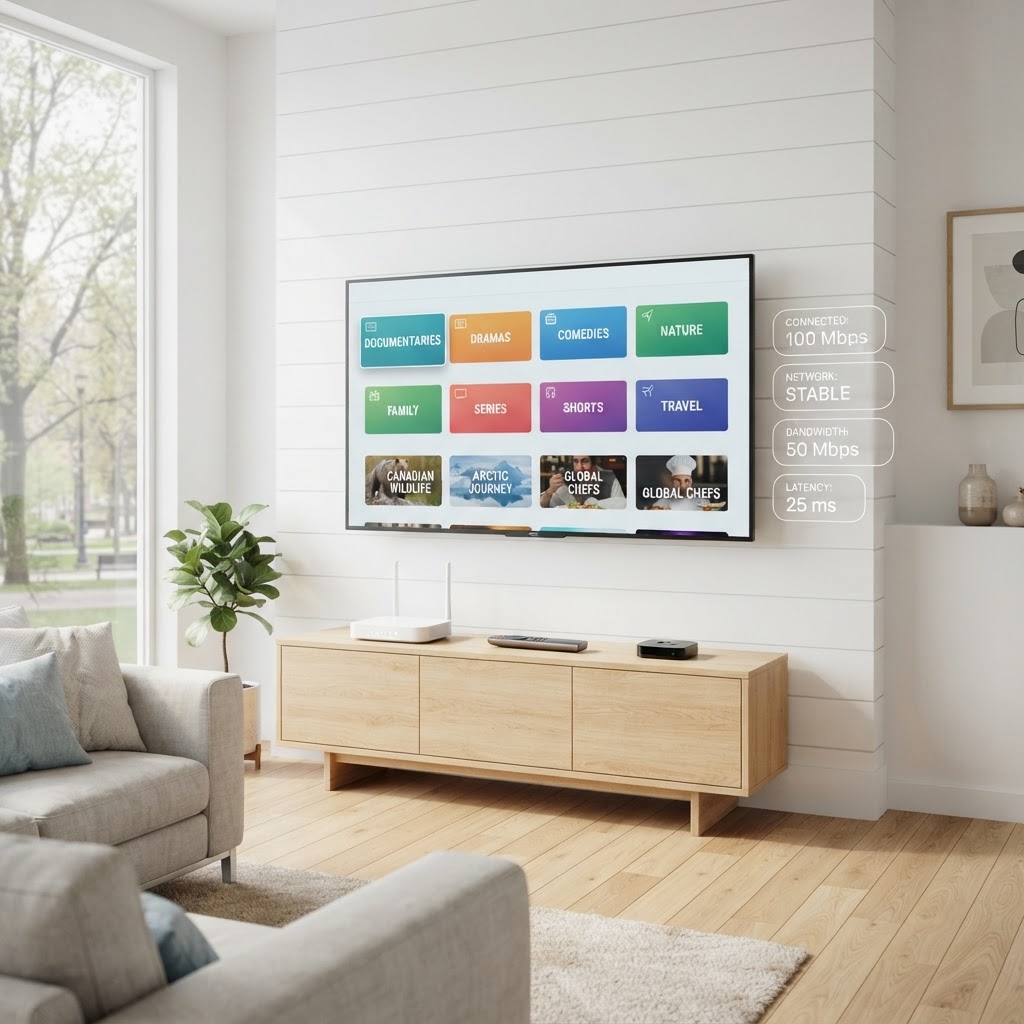
IPTV does not have one universal internet-speed requirement because the bandwidth needed depends on stream resolution, bitrate, codec, number of simultaneous streams, and the stability of the connection. A single HD stream may require far less bandwidth than a high-bitrate 4K stream, and households using multiple TVs need additional headroom. Speed alone is not enough — connection consistency, Wi-Fi quality, device performance, and service stability all affect playback.
| Streaming Scenario | Practical Connection Consideration | Why |
|---|---|---|
| 1 HD stream | A stable connection with modest capacity may suffice | HD bitrates are generally lower than 4K |
| 1 Full HD stream | Stable connection with moderate headroom | Full HD may use higher bitrate than standard HD |
| 1 4K stream | Higher sustained bandwidth and a 4K-capable device | 4K bitrates vary but are typically higher than HD |
| 2 simultaneous streams | Bandwidth for both streams plus household headroom | Two streams consume more combined bandwidth |
| 3 simultaneous streams | Significant household capacity required | Three streams add together; plan limits also apply |
| 4 simultaneous streams | High-capacity plan and strong internal network | Four streams plus other household use need substantial headroom |
| Busy household | Account for gaming, downloads, and video calls | IPTV shares the connection with other activity |
Key takeaways
- IPTV bandwidth depends on stream bitrate, not just advertised resolution.
- One stream and four simultaneous streams have very different household requirements.
- Internet speed measured beside the router may differ significantly from speed at the television.
- Ethernet generally provides more predictable performance than congested Wi-Fi.
- A 500 Mbps internet plan can still buffer if the Wi-Fi, device, player, or stream source is unstable.
- Connection consistency — latency, jitter, and packet loss — matters alongside raw speed.
This guide explains how internet speed, bandwidth, bitrate, resolution, simultaneous streams, Wi-Fi, Ethernet, latency, and packet loss all affect IPTV playback. It covers what to test, how to test it, and why a fast internet plan alone does not guarantee smooth streaming. For buffering-specific diagnosis, see our full IPTV buffering troubleshooting guide.
How Much Internet Speed Does IPTV Need?
There is no single universal Mbps requirement for IPTV. The speed you need depends on the resolution and bitrate of the stream, the codec used, the number of simultaneous streams, and the stability of your connection. A standard-definition stream uses far less bandwidth than a 4K stream, and two 4K streams on different TVs require more combined bandwidth than one.
Resolution, bitrate, codec, and frame rate are separate properties. Resolution is the number of pixels in the picture (HD, Full HD, 4K). Bitrate is the amount of data used per second. Codec is the compression method (H.264, H.265, AV1, and others). Frame rate is how many frames are displayed per second. Two streams with the same resolution can have different bitrates depending on the codec, frame rate, and content complexity.
A 4K stream is not automatically a fixed bitrate. Two 4K streams from different providers — or even the same provider at different times — may use different amounts of bandwidth depending on encoding settings and content. This is why a single number cannot define what IPTV needs.
Bitrate vs Internet Speed
Bitrate is how much video data a stream uses over time, measured in Mbps. Internet speed is how much data a connection can potentially deliver, also measured in Mbps. If a stream's bitrate approaches or exceeds the available sustained bandwidth, playback becomes vulnerable to interruption because the player cannot refill its buffer fast enough.
The delivery chain is: internet connection → available bandwidth → stream bitrate → player buffer → video playback. Each stage must handle the data rate. If any stage cannot keep up, the stream buffers. This is why headroom matters — your connection should deliver more bandwidth than the stream requires, so fluctuations in speed do not empty the buffer.
Headroom is the difference between what your connection can sustain and what the stream actually uses. If a stream uses 15 Mbps and your connection sustains 25 Mbps at the TV, you have 10 Mbps of headroom. If another device starts downloading, that headroom can disappear, and the stream buffers.
Why Resolution Alone Does Not Tell You Bandwidth
Resolution labels — HD, Full HD, 4K — describe the number of pixels, not the bandwidth. HD does not equal one fixed bitrate. Full HD does not equal one fixed bitrate. 4K does not equal one fixed bitrate. The actual bandwidth depends on the codec, compression level, frame rate, source quality, encoding method, and content complexity.
For example, a fast-moving sports broadcast with high frame rate and complex motion may require a higher bitrate than a static talk show at the same resolution, because the encoder needs more data to represent motion accurately. A 4K movie encoded with an efficient codec may use less bandwidth than a 4K live stream encoded with an older codec.
This means you cannot look at a resolution label and know exactly how much bandwidth the stream uses. The bitrate is what determines the bandwidth requirement, and bitrate varies by source, provider, and content.
How Much Headroom Should You Have?
Running a connection at 100% capacity is undesirable because real-world bandwidth fluctuates and households have other devices competing for it. Other devices, background updates, cloud synchronization, phones, video calls, gaming, and smart home devices all consume bandwidth. If your connection barely covers the stream bitrate, any concurrent activity can cause buffering.
A practical framework is: required household capacity ≈ simultaneous stream bandwidth + other household internet use + reasonable headroom. The headroom accounts for fluctuations and concurrent activity. A buffer of 2–3 times the stream bitrate gives comfortable headroom for a single stream. For multiple streams, add their bandwidth together and then add household headroom.
This is not a scientific formula with a fixed percentage — it is a practical guideline. The point is that your connection should comfortably exceed what the stream uses, not barely meet it.
One TV vs Multiple TVs
The number of simultaneous streams changes the household bandwidth requirement. One television streaming one HD stream uses a relatively small amount of bandwidth. Two televisions streaming different content at the same time use roughly twice the bandwidth of one. Three or four simultaneous streams add together and require a higher-capacity internet plan.
It is important to distinguish subscription connection limits from internet bandwidth. An IPTV plan that allows three simultaneous connections means the provider permits three devices to stream at once. But having a three-connection plan does not automatically mean your internet connection can sustain three high-bitrate streams simultaneously — that depends on your bandwidth. You need both the subscription connections and the internet capacity to match your usage.
| Scenario | Bandwidth Consideration | Also Check |
|---|---|---|
| 1 TV | Single-stream bitrate + headroom | Connection stability at the TV |
| 2 TVs | Two stream bitrates added together + headroom | Subscription connection limit |
| 3 TVs | Three stream bitrates + household headroom | Plan allows 3+ connections |
| 4 TVs | Four stream bitrates + significant household headroom | High-capacity plan and strong Wi-Fi or Ethernet |
Is 25 Mbps Enough for IPTV?
25 Mbps may be enough for some single-stream HD scenarios if the connection is stable and household usage is limited. A single HD stream typically uses less than 25 Mbps, so a stable 25 Mbps connection at the television can handle it with some headroom. However, high-bitrate streams, 4K content, multiple simultaneous streams, and busy household use can require more than 25 Mbps.
If you have one TV, watch mostly HD content, and your household does not heavily use the internet at the same time, 25 Mbps may work. If you stream 4K, use multiple TVs, or have other devices consuming bandwidth, 25 Mbps is likely not enough. Test your actual speed at the TV — if it is below 25 Mbps, you may need a faster plan or a better Wi-Fi setup.
Is 50 Mbps Enough for IPTV?
For many households, 50 Mbps provides more headroom than 25 Mbps and can handle a single 4K stream or two HD streams with moderate household use. 50 Mbps at the television gives comfortable capacity for most common single-TV streaming scenarios. However, actual suitability depends on the number of streams, resolution, other household traffic, and connection stability.
If you have two TVs streaming HD simultaneously, 50 Mbps may be sufficient if other household use is light. If both TVs stream 4K, or if other devices are downloading or gaming at the same time, 50 Mbps may not be enough. No speed guarantees smooth playback — the entire delivery chain must support it.
Is 100 Mbps Enough for IPTV?
100 Mbps can provide substantial capacity for multiple common streaming scenarios, but raw speed alone does not guarantee smooth playback. 100 Mbps at the television can handle several HD streams or one to two 4K streams with household headroom. However, bottlenecks at other points in the chain can still cause buffering.
Possible bottlenecks that 100 Mbps does not fix include weak Wi-Fi at the TV, an older streaming device, a router that cannot handle concurrent traffic, the stream source being overloaded, a poorly optimized player app, and ISP routing issues. If you have 100 Mbps and still buffer, the cause is likely not your internet speed — it is elsewhere in the chain.
Do You Need Gigabit Internet for IPTV?
Usually not solely for one IPTV stream. A single stream's bitrate is normally far below gigabit connection capacity — even a high-bitrate 4K stream uses a fraction of 1 Gbps. Gigabit internet may still be useful for large households with many devices, heavy downloads, cloud backups, gaming, and multiple concurrent high-resolution streams, but buying a 1 Gbps plan does not automatically fix buffering.
If a single stream buffers on a gigabit connection, the bottleneck is not internet speed. It is Wi-Fi, the device, the player app, or the service. Upgrading to gigabit to fix a single-stream buffering problem is unlikely to help unless the issue is household bandwidth saturation from many concurrent users.
How Much Speed Does 4K IPTV Need?
4K IPTV does not have one universal bandwidth requirement because 4K bitrate varies by codec, frame rate, stream quality, provider encoding, and network conditions. A 4K stream encoded with an efficient codec may use less bandwidth than a 4K stream with an older codec. As a practical guideline, 4K streaming generally requires a stable connection of at least 25 Mbps at the television, with 50 Mbps or more recommended for headroom.
These numbers are approximate guidance, not guarantees. The actual bitrate of a 4K stream depends on how the provider encodes it. 4K also requires the entire chain to support it: a 4K source, a 4K-capable service, a network that can sustain the bitrate, a 4K-capable player, a 4K-capable device, and a 4K television. If any link in the chain does not support 4K, the stream will not play in 4K regardless of internet speed.
Wi-Fi vs Ethernet for IPTV
Ethernet generally offers the most predictable local-network connection when practical. It eliminates Wi-Fi interference, signal loss, and congestion, providing a consistent path between the router and the streaming device. Wi-Fi offers convenience and flexibility but is subject to interference and signal degradation with distance and walls.
| Connection | Strengths | Limitations | Best Use |
|---|---|---|---|
| Ethernet | Consistency, low interference, predictability | Requires cable; some devices need an adapter | Fixed TV setups, 4K streaming |
| 2.4 GHz Wi-Fi | Longer range, better wall penetration | More congestion, lower throughput | Devices far from the router |
| 5 GHz Wi-Fi | Higher throughput, less congested | Shorter range, weaker through walls | Most modern setups |
| Wi-Fi 6 (newer) | Strong performance in congested areas | Requires Wi-Fi 6 router and device | Households with many devices |
Ethernet removes many wireless variables, making it an excellent diagnostic tool — if buffering stops on Ethernet, Wi-Fi was contributing. But Ethernet cannot fix a service overload, a bad stream, an app problem, or a device decoding limitation. Those issues are upstream of the local network.
2.4 GHz vs 5 GHz Wi-Fi
The 2.4 GHz band offers longer reach and better wall penetration but is more congested and offers lower potential throughput. The 5 GHz band offers higher potential throughput and is often less congested, but it has less range and weaker penetration through some walls. Neither is universally better — the right choice depends on the distance and construction between the router and the streaming device.
Do not assume 5 GHz is always better. If your streaming device is far from the router or separated by several walls, 2.4 GHz may provide a more stable signal despite its lower throughput. If the device is close to the router, 5 GHz's higher throughput is usually preferable. Test at the TV location to see which band performs better.
Why a Speed Test Beside the Router Can Mislead You
A speed test performed on a phone one metre from the router does not necessarily represent the speed your streaming device receives. A Firestick behind a television, a Smart TV across the room, or an Android box inside a cabinet may receive a significantly weaker Wi-Fi signal than a phone next to the router.
Physical placement matters. Walls, floors, distance, and interference from other electronics all reduce Wi-Fi signal strength. To get an accurate picture of what your streaming device receives, test the speed at or near the device's actual location. If the speed at the TV is much lower than the speed beside the router, Wi-Fi signal strength is a contributing factor.
Download Speed vs Latency vs Jitter vs Packet Loss
Download speed is the amount of data delivered per second. Latency is the delay in data traveling between your device and the server. Jitter is the variation in that latency. Packet loss is data packets that fail to arrive at their destination. IPTV depends heavily on sustained delivery — a connection with high speed but high jitter or packet loss can buffer more than a slower but more stable connection.
| Metric | What It Means | How It Can Affect Streaming |
|---|---|---|
| Download speed | Data delivered per second (Mbps) | Must exceed stream bitrate with headroom |
| Latency | Delay in data travel (ms) | High latency can slow buffer refilling |
| Jitter | Variation in latency | Inconsistent delivery can empty the buffer |
| Packet loss | Packets that fail to arrive | Missing data causes freezes and buffering |
Latency does not have the same importance as raw bandwidth in every streaming case. For IPTV, sustained throughput and low packet loss are typically more important than extremely low latency. However, high jitter and packet loss can undermine a connection that looks fast on a speed test. A balanced connection — good speed, low jitter, low packet loss — provides the best streaming experience.
Why Does IPTV Buffer Even With 500 Mbps Internet?
IPTV can buffer even with a 500 Mbps internet plan because advertised internet speed measures only one part of the delivery chain. A 500 Mbps plan at the router does not guarantee 500 Mbps at the television. The signal must travel from the router to the streaming device, and several bottlenecks can reduce effective throughput along the way.
Possible bottlenecks include weak Wi-Fi at the TV, router issues, device performance limitations, player app problems, stream bitrate exceeding what the device can decode, packet loss, ISP routing, service or server load, and household traffic from other devices. If the bottleneck is not internet speed, upgrading the plan will not fix it.
For a full diagnostic framework to identify which layer is causing buffering, read our complete IPTV buffering troubleshooting guide.
How to Test Your Internet for IPTV
Do not rely on a single speed-test result. Use this methodology to get an accurate picture of what your streaming device actually receives.
- 1
Test near the streaming device, not beside the router. Use a phone or laptop at the TV's location.
- 2
Record the download speed. Note whether it meets the minimum for your stream quality.
- 3
Repeat the test multiple times. A single result can be misleading.
- 4
Compare morning and evening performance if your issues are time-specific.
- 5
Compare Wi-Fi and Ethernet where possible. If Ethernet is much faster, Wi-Fi is a factor.
- 6
Test during normal household usage, not when the house is idle. Other devices affect available bandwidth.
- 7
Try another legitimate streaming platform. If it also buffers, the issue is broader than IPTV.
- 8
Compare results across devices. If one device gets less speed, its Wi-Fi or hardware may be the bottleneck.
How to Calculate Multiple Stream Requirements
To estimate the household bandwidth needed for multiple simultaneous streams, add the estimated bitrate of each stream, plus other household usage, plus headroom. This is a simplified framework — actual bitrates vary by provider and content.
Example: Stream A (HD) ≈ 10 Mbps + Stream B (Full HD) ≈ 15 Mbps + Stream C (4K) ≈ 25 Mbps = 50 Mbps of streaming bandwidth. Add other household usage (downloads, video calls) ≈ 20 Mbps. Add headroom ≈ 30 Mbps. Practical connection requirement ≈ 100 Mbps. This is an estimate, not a guarantee — actual bitrates vary.
Not all streams use the same bitrate. A 4K movie and a 4K live sports stream may have different bandwidth requirements. Use these estimates as a planning framework, not as exact figures, and test your actual connection at the device.
Household Bandwidth Examples
Different household types need different amounts of bandwidth. These scenarios illustrate why a household needs more capacity than the IPTV stream itself.
| Household Type | Typical Usage | Bandwidth Consideration |
|---|---|---|
| Single user | 1 TV, phone browsing, basic use | Modest stable connection may suffice |
| Couple | 1–2 TVs, phones, occasional video calls | Moderate capacity with headroom |
| Family | 2–4 TVs, gaming, phones, tablets, downloads | Higher capacity for concurrent use |
| Heavy household | Multiple high-res streams, gaming, cloud backup, large downloads | High-capacity plan and strong internal network |
A household needs more capacity than the IPTV stream itself because the internet connection is shared. Gaming, video calls, cloud backups, phone and tablet usage, and smart home devices all consume bandwidth. Planning for the household, not just the TV, prevents buffering when multiple activities happen at once.
Router Placement
Router placement significantly affects Wi-Fi performance. A router placed in a central, elevated location provides better coverage than one tucked in a corner, inside a cabinet, or on the floor. Walls, floors, metal objects, and interference from other electronics all reduce signal strength.
Practical tips include placing the router in a central location relative to the streaming devices, avoiding closed cabinets, keeping it elevated rather than on the floor, and minimizing the number of walls between the router and the TV. In larger homes, a mesh Wi-Fi system can improve coverage compared to a single router. Do not overcomplicate — start with placement before buying new hardware.
Router Age and Quality
A fast ISP connection can be bottlenecked by an old or weak router. An older router with outdated Wi-Fi hardware, poor coverage, or limited processing capacity may not deliver the speed your plan provides, even if the modem connection is fast.
Diagnostic signs that your router may be the bottleneck include consistently lower speeds at devices than the plan advertises, Wi-Fi dropouts, slow performance when multiple devices connect, and the router being several years old. Before buying a new router, update its firmware, reposition it, and test. If those steps do not help, a newer router or mesh system may improve performance.
Can an IPTV Device Limit Speed?
Yes. The streaming device itself can limit the speed you achieve. Older Smart TVs may have slower Wi-Fi chipsets or Ethernet ports. Older Fire TV devices may have limited network interfaces. Low-cost Android boxes may have Wi-Fi or processing limitations. A device's processor, Wi-Fi chipset, and Ethernet port capability all affect the maximum speed it can achieve.
Your internet plan speed can exceed what a specific device's network interface actually achieves. A 500 Mbps plan does not help a device whose Wi-Fi chipset maxes out at 100 Mbps. If a speed test at the device shows significantly less than your plan speed, the device's hardware may be the bottleneck. For more, see our devices page.
Smart TV Internet Speed
Smart TVs have built-in network interfaces, but their performance varies by model and age. Some Smart TVs have Ethernet ports; others rely on Wi-Fi only. Older Smart TVs may have slower Wi-Fi chipsets or processors that cannot handle high-bitrate streams. For Smart TV-specific guidance, see our Smart TV IPTV guide and Smart TV device page.
Firestick Internet Speed
Fire TV devices connect via Wi-Fi, and some models support Ethernet adapters. Older Firestick models may have slower Wi-Fi or processing limitations that cause buffering on high-bitrate streams. For Firestick-specific guidance, see our Firestick IPTV guide, Firestick device page, and Firestick setup guide.
Android TV and Google TV Internet Speed
Android TV and Google TV devices vary by manufacturer. Some have Ethernet ports; others rely on Wi-Fi. Network performance depends on the specific device's hardware. For more, see our Android TV device page.
Apple TV Internet Connection
Apple TV supports both Wi-Fi and Ethernet, depending on the model. It generally has strong network hardware, but performance still depends on the home network environment. For more, see our Apple TV device page. Do not rely on fabricated model specifications — verify current details with Apple's official documentation.
Does IPTV Use a Lot of Data?
Internet speed (Mbps) and monthly data usage (GB or TB) are different concepts. Mbps measures the rate of data delivery. GB or TB measures the total data consumed over time. A stream with a bitrate of 15 Mbps uses approximately 15 megabits per second, which translates to roughly 6.75 GB per hour (15 Mbps ÷ 8 = 1.875 MB/s × 3600 seconds = 6.75 GB).
Data usage ≈ bitrate × viewing time. A 4K stream with a higher bitrate uses more data per hour than an HD stream. If you stream several hours per day, monthly data usage can add up significantly. Not all IPTV streams consume the same amount of data — the total depends on the bitrate of each stream and how long you watch.
| Stream Quality | Approximate Bitrate | Approximate Data Per Hour |
|---|---|---|
| HD | ~8–10 Mbps | ~3.5–4.5 GB |
| Full HD | ~10–15 Mbps | ~4.5–6.75 GB |
| 4K | ~15–25 Mbps | ~6.75–11 GB |
These are approximate figures. Actual bitrate and data usage vary by provider, codec, content, and encoding. Use them as a rough planning guide, not as exact measurements.
Data Caps
Some internet plans may have usage policies or data caps. Not all Canadian internet plans are unlimited — check your own ISP plan to understand any data limits. If your plan has a data cap, heavy IPTV usage, especially 4K streaming, can consume a significant portion of your monthly allowance. Do not make provider-specific assertions about data caps without checking current plan details.
IPTV Internet Requirements in Canada
IPTV internet requirements in Canada are the same as anywhere else — the technology does not change by country. Canadian households generally have access to a range of internet plan speeds, with fiber and high-speed cable available in most urban and suburban areas. Wi-Fi performance inside Canadian homes depends on the same factors as anywhere: router placement, home construction, and device quality.
We do not invent Canadian average speeds, Brampton average speeds, or Ontario ISP performance figures without citing current authoritative data. For area-specific service information, see our IPTV Brampton page and IPTV Ontario page.
Brampton and Ontario Context
Internet speed requirements for IPTV are the same in Brampton as anywhere else in Ontario or Canada. Brampton and the Greater Toronto Area generally have strong residential internet options, with fiber and high-speed cable available in most neighborhoods. Rural areas of Ontario may have different options. We do not operate local servers, local networking infrastructure, or a physical office in Brampton.
For area-specific service information, see our IPTV Brampton page and IPTV Ontario page. For help choosing a provider, see our guide to choosing an IPTV service in Brampton.
How to Choose an Internet Plan for IPTV
When choosing an internet plan for IPTV, consider the following factors:
- •Number of simultaneous streams — how many TVs will stream at the same time
- •Resolution — HD, Full HD, or 4K, which affects bitrate requirements
- •Household size — how many people and devices share the connection
- •Gaming — online gaming consumes bandwidth and requires low latency
- •Video calls — work or family video calls compete for bandwidth
- •Downloads — game updates, cloud backups, and file downloads consume capacity
- •Wi-Fi coverage — whether your router can deliver speed to the TV location
- •Data caps — whether the plan has monthly usage limits
- •Router quality — whether your current router can handle the plan speed
We do not recommend a specific ISP unless reliable current comparison research supports it. The right plan depends on your household's specific usage. For subscription options, see our plans page.
When More Speed Will Not Fix the Problem
More Mbps will not necessarily solve every streaming problem. If the cause is weak Wi-Fi, an old device, app crashes, a bad stream source, server overload, a codec issue, a VPN, or router instability, upgrading the internet plan will not help. The cause must be diagnosed before the fix.
Before upgrading your internet plan, run through the diagnostic steps in this guide and our buffering troubleshooting guide. If your speed at the TV already exceeds the stream bitrate with headroom and you still buffer, the bottleneck is not internet speed.
Quick Decision Table
| If... | Then... |
|---|---|
| One TV, HD | A modest stable connection may be sufficient |
| Multiple TVs | Account for concurrent stream bandwidth |
| 4K viewing | Additional bandwidth and device compatibility matter |
| Fast internet but buffering | Diagnose Wi-Fi, device, app, or service |
| Good Wi-Fi but old TV | Device performance may be the bottleneck |
| Ethernet works but Wi-Fi does not | The wireless network is likely contributing |
Final Network Checklist
Use this checklist to assess your setup before subscribing to or troubleshooting IPTV:
- Know how many TVs stream simultaneously
- Know typical stream quality (HD, Full HD, 4K)
- Test speed near the streaming device, not beside the router
- Test during normal household use
- Compare Wi-Fi and Ethernet where possible
- Check router placement and age
- Check device performance and network capability
- Leave capacity for other household devices
- Do not judge only by advertised ISP speed
- Investigate buffering separately if speed appears sufficient
Frequently Asked Questions
Editorial note
This article is published by the IPTV Brampton Ontario Editorial Team as an educational resource. It reflects general guidance, not specific speed guarantees. Actual stream bitrates, device capabilities, and network conditions vary. Always verify current plan details with your ISP and device specifications with the manufacturer. This article does not constitute legal advice.
Get IPTV setup tips for Ontario
Get setup tips, device guides, and Ontario-specific streaming advice delivered to your inbox.